How to Migrate Joomla to WordPress Yourself: 5-Step Tutorial
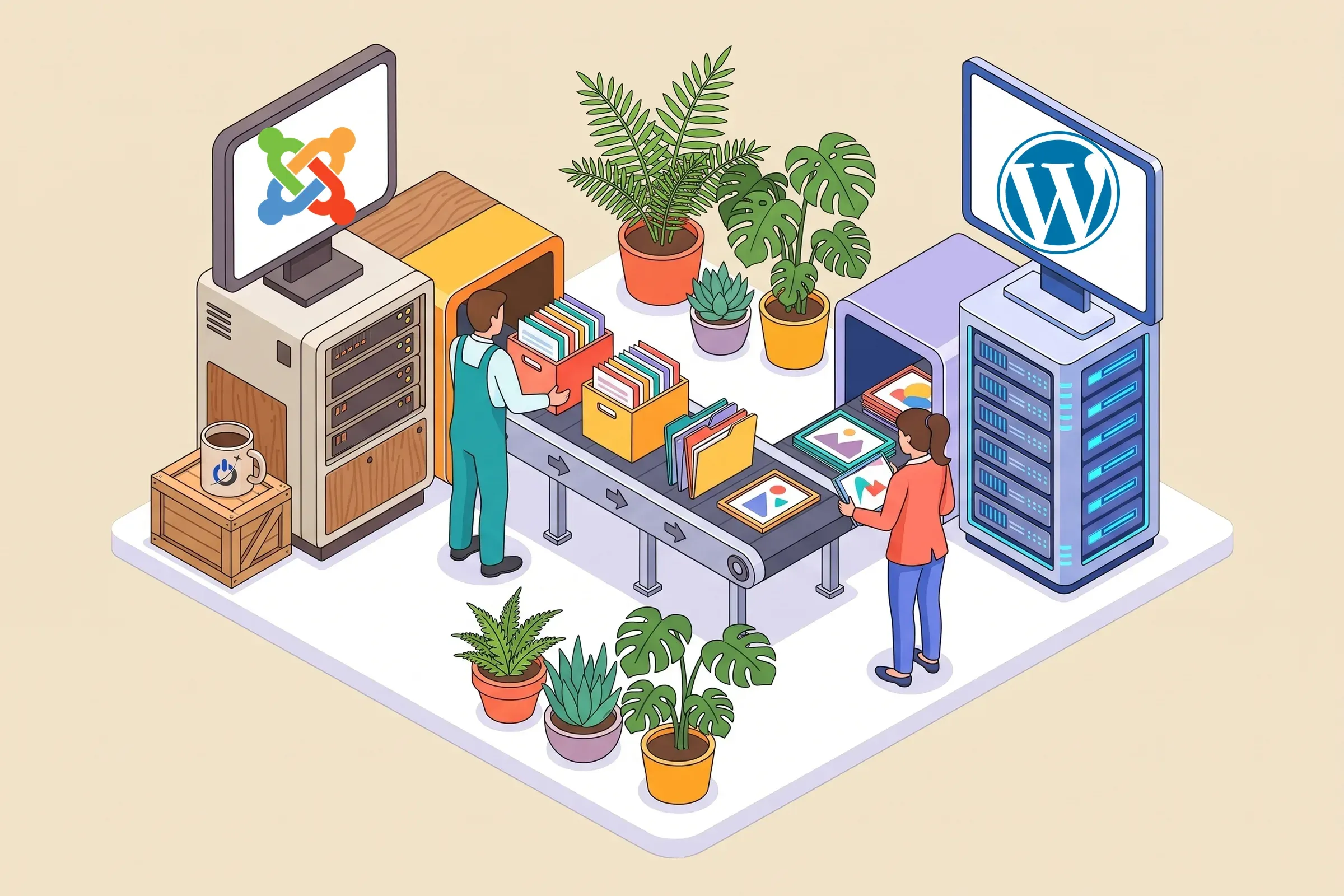
This tutorial explains how to migrate Joomla to WordPress yourself in 5 steps, using the free FG Joomla to WordPress plugin. It is meant for owners of simple sites (brochure sites, blogs) who want to handle the Joomla to WordPress migration themselves with a rigorous method.
You will find the equivalents between the two CMSs, preparation, the 5 import steps, redirects to keep your SEO, final checks and the cases where it is better to hand the move from Joomla to WordPress to a professional. A checklist tells you whether you are ready.
At a glance
- Migrating Joomla to WordPress takes 5 steps: install WordPress, install FG Joomla to WordPress, connect it, import, then redirect.
- The free plugin version imports categories, articles, images, media and tags.
- Menus, users, SEO metadata and automatic redirects require the Premium version or manual work.
- 301 redirects from the old URLs are essential to keep your rankings.
- Always work on a staging copy and keep a full backup of the Joomla site.
Why move from Joomla to WordPress?
Joomla remains a solid CMS, but WordPress powers a much larger share of the web, with a far bigger ecosystem of plugins, themes and providers. For a brochure site or blog, WordPress often offers a simpler admin for the team, easy updates and mature SEO tools. Common triggers: a Joomla 3 site no longer maintained, abandoned extensions, the need for a more autonomous team, or a redesign that makes the switch natural.
What changes between Joomla and WordPress
| Joomla | WordPress | Note |
|---|---|---|
| Article | Post or page | Chosen at import |
| Category (and section in Joomla 1.5) | Category | Sections become parent categories |
| Tag | Tag | Joomla 3.1 and later |
| Module | Widget or block | To rebuild |
| Menu | Menu | Premium plugin version or rebuild |
| Component / extension | Plugin | Find an equivalent |
| Template | Theme | New or custom theme |
| User | User | Premium version (with passwords) or CSV import |
Content (articles, categories, images) transfers well. What you rebuild by hand is everything tied to the template and extensions: layout, modules, forms, specific features.
Preparing the migration
- Back up the Joomla site completely (files and database).
- List every current URL with a crawler or the sitemap: it is the basis of the redirect plan.
- Record your data from Search Console and Analytics (pages with traffic, main queries).
- Inventory extensions and find their WordPress equivalents.
- Collect database access: host, name, user, password and table prefix.
How to migrate Joomla to WordPress: the 5 steps
Step 1: install WordPress
Install WordPress on a staging environment (subdomain or local copy), never directly in place of the live site. Using the same hosting as Joomla makes database access easier.
Step 2: install FG Joomla to WordPress
In the WordPress admin, go to Plugins, Add New, search for “FG Joomla to WordPress”, install and activate it. According to its official listing, it supports Joomla versions 1.5 to 6.0. The tool then appears under Tools, Import.
Step 3: connect the Joomla database
Enter the Joomla site URL and the database settings: host, database name, user, password and table prefix (found in Joomla’s configuration.php). Test the connection before continuing.
Step 4: import the content
Choose your options: import articles as posts or pages, featured images and media, tags. Start the import and follow the log. On a large site it can take a while; if it stops, restart it and the plugin resumes where it left off.
| Item | Free version | Premium version |
|---|---|---|
| Sections, categories, articles | Yes | Yes |
| Images and media | Yes | Yes |
| Tags | Yes | Yes |
| Internal links updated | Yes | Yes |
| Users with passwords | No | Yes |
| Navigation menus | No | Yes |
| Meta descriptions and old URL redirects | No | Yes |
| Extensions (K2, Kunena, sh404sef…) | No | Through add-ons |
Step 5: fix links and set up redirects
The plugin updates internal links, but old Joomla URLs (such as /index.php/category/article) no longer match the new addresses. Redirect each one with a 301 to the new page, using a plugin such as Rank Math or Redirection, or the FG Premium version, which handles these redirects.
Want to protect your new site’s rankings? Have your SEO checked by our experts
Keeping your SEO during the migration
- Redirect every old URL that gets traffic or links, one by one, to its equivalent.
- Carry over titles and descriptions of key pages into your WordPress SEO plugin.
- Keep the same content on pages that rank well, at least at first.
- Submit the new sitemap in Search Console and monitor 404 errors for several weeks.
For a broader method, see our WordPress SEO guide.
After the import: theme, plugins and checks
Choose a lightweight, maintained theme, rebuild menus, forms and specific features with reputable plugins, then check page by page: content, images, links, forms, mobile display. Once everything is validated, point the domain to WordPress, check redirects again and keep the Joomla backup for a few months.

Do it yourself or hire a pro?
This tutorial suits a simple site: a few dozen pages, a blog, few extensions. As soon as the site relies on complex components (K2, a store, a directory, a members area), hundreds of well-ranked URLs or custom development, an assisted migration reduces the risks: full redirect mapping, rebuilt features and SEO monitoring after launch. See our website redesign services.
Mistakes to avoid
- Migrating directly on the live site without a staging copy.
- Forgetting 301 redirects and losing traffic from old pages.
- Deleting the Joomla site too early, before everything is checked.
- Recreating every Joomla extension instead of simplifying the site.
- Ignoring images still pointing to the old Joomla folder.
Conclusion: a successful migration is a prepared one
Migrating from Joomla to WordPress is within reach for owners of simple sites, thanks to FG Joomla to WordPress, which transfers most of the content. Success depends mainly on preparation (backup, URL list, extension inventory) and on redirects, which protect your existing rankings.
Our advice: run a first full import on staging, check it thoroughly, and only then prepare the domain switch.
Frequently asked questions about migrating Joomla to WordPress
Why migrate a Joomla site to WordPress?
To benefit from a wider ecosystem of plugins, themes and providers, an admin that is often simpler for the team and proven SEO tools. It is also a chance to leave an unmaintained Joomla version or abandoned extensions.
How do you migrate Joomla to WordPress without losing content?
Back up the Joomla site, import content with FG Joomla to WordPress into a staging WordPress, then check articles, categories, images and links page by page. Keep the old site and its backup until everything is validated.
Does migrating from Joomla to WordPress hurt SEO?
Not if it is well prepared. 301 redirects from each old URL, carrying over titles and descriptions and keeping well-ranked content protect most of the traffic. Then monitor Search Console for several weeks.
How long does a Joomla to WordPress migration take?
For a simple site, the import itself takes minutes to hours. The total time, including choosing a theme, rebuilding menus and forms, redirects and checks, is more often counted in days, or weeks for a feature-rich site.
Can you keep the same design after migrating?
Yes, by recreating the design in a custom WordPress theme or with a page builder. The Joomla template does not transfer as is. Many owners use the migration to modernize the design.
What precautions should you take before migrating?
Make a full backup, list all current URLs, record Search Console data, inventory extensions and their equivalents, and work on staging. Plan the launch for a quiet period in your business.