How to Update WordPress and Plugins Safely: Step-by-Step Guide
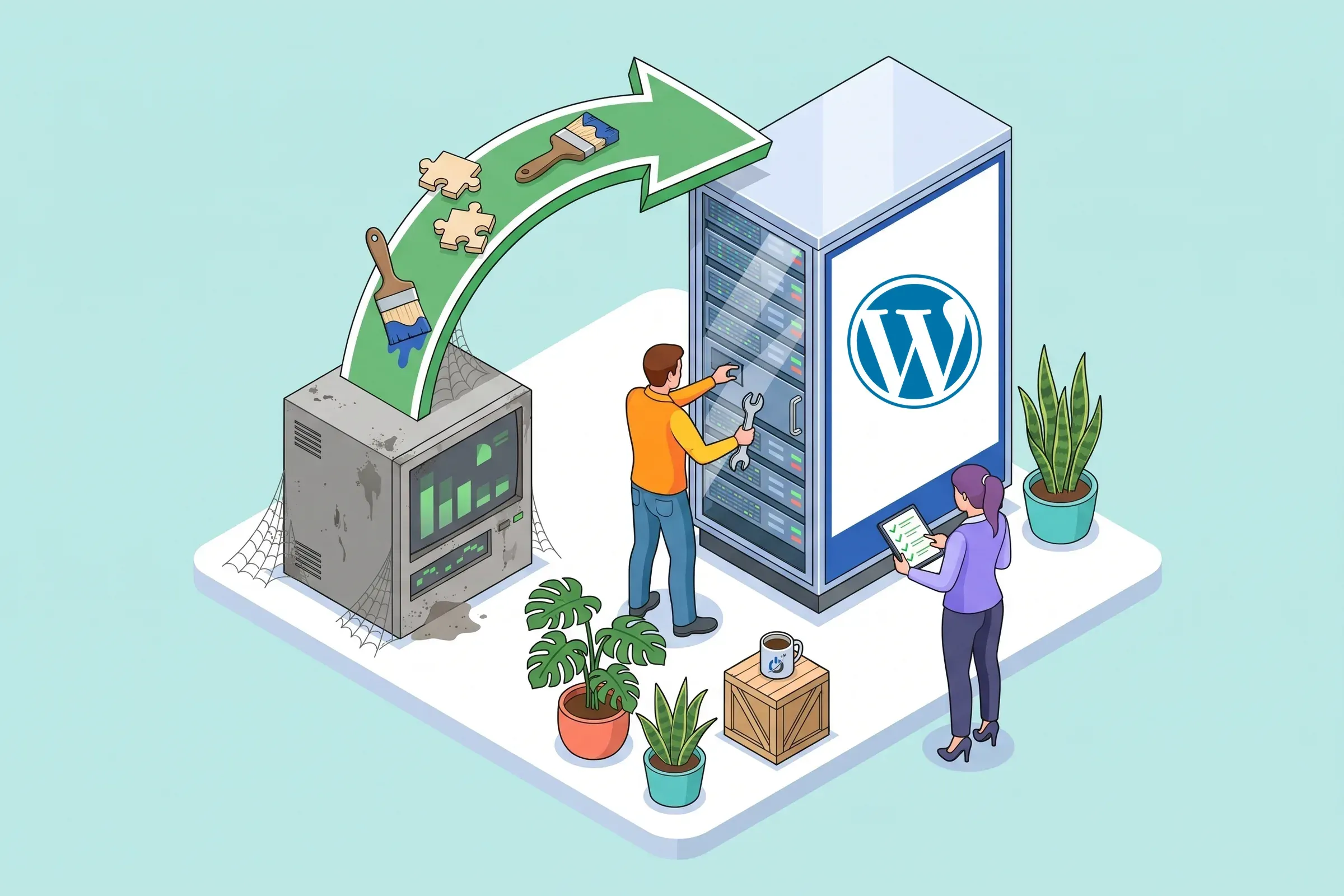
This guide explains how to handle WordPress updates safely: core, theme, plugins and the server’s PHP version. You will learn how to update WordPress plugins one by one or in bulk, the right order, automatic updates, how to update PHP for WordPress, and what to do if the site breaks. A checklist tells you whether you are ready.
At a glance
- Regular WordPress updates fix security holes, bugs and compatibility issues.
- Before any update: a tested full backup and, ideally, a trial on a copy of the site.
- Recommended order: plugins, theme, then WordPress core, checking the site between each step.
- WordPress recommends PHP 8.3 or later; older versions no longer receive security fixes.
- If something breaks, recovery mode, rolling back a version or restoring the backup gets you back.
Why update WordPress regularly?
A WordPress site relies on four layers that evolve separately: WordPress core, the theme, plugins and the server’s PHP version. Each update fixes bugs, improves performance and, above all, closes security holes. Once a vulnerability is public, bots scan thousands of sites for it within hours: an outdated site becomes an easy target.
Updates also keep the site compatible with browsers and connected services (payments, forms, analytics). And the longer you wait, the riskier the next update, because version gaps pile up.
What to update, and how often?
| Item | When to update | Watch out for |
|---|---|---|
| Plugins | Weekly or every two weeks; immediately for a security fix | Read the changelog, check premium plugin licenses |
| Theme | With each new release | Customizations in a child theme, or they are lost |
| WordPress core | Minor versions: automatic; major versions: after testing | Compatibility of critical plugins (store, forms, page builder) |
| PHP | Before your version reaches end of support | Test on a copy of the site first |
| Database | With your host, when servers change | Full backup before any change |
Before updating WordPress: backup and staging
Before any update, make a full backup of files and database, stored off the server. Check that it restores: an untested backup is not a real backup.
For an important site or a major release, work first on a staging site, an exact copy of the live site. Many hosts offer this in one click. Apply the updates there, check that everything works, then repeat on the live site.
One last habit: read the plugin changelog. Unless it is a security fix, waiting a few days after a major plugin release gives time for early bugs to be found and fixed.
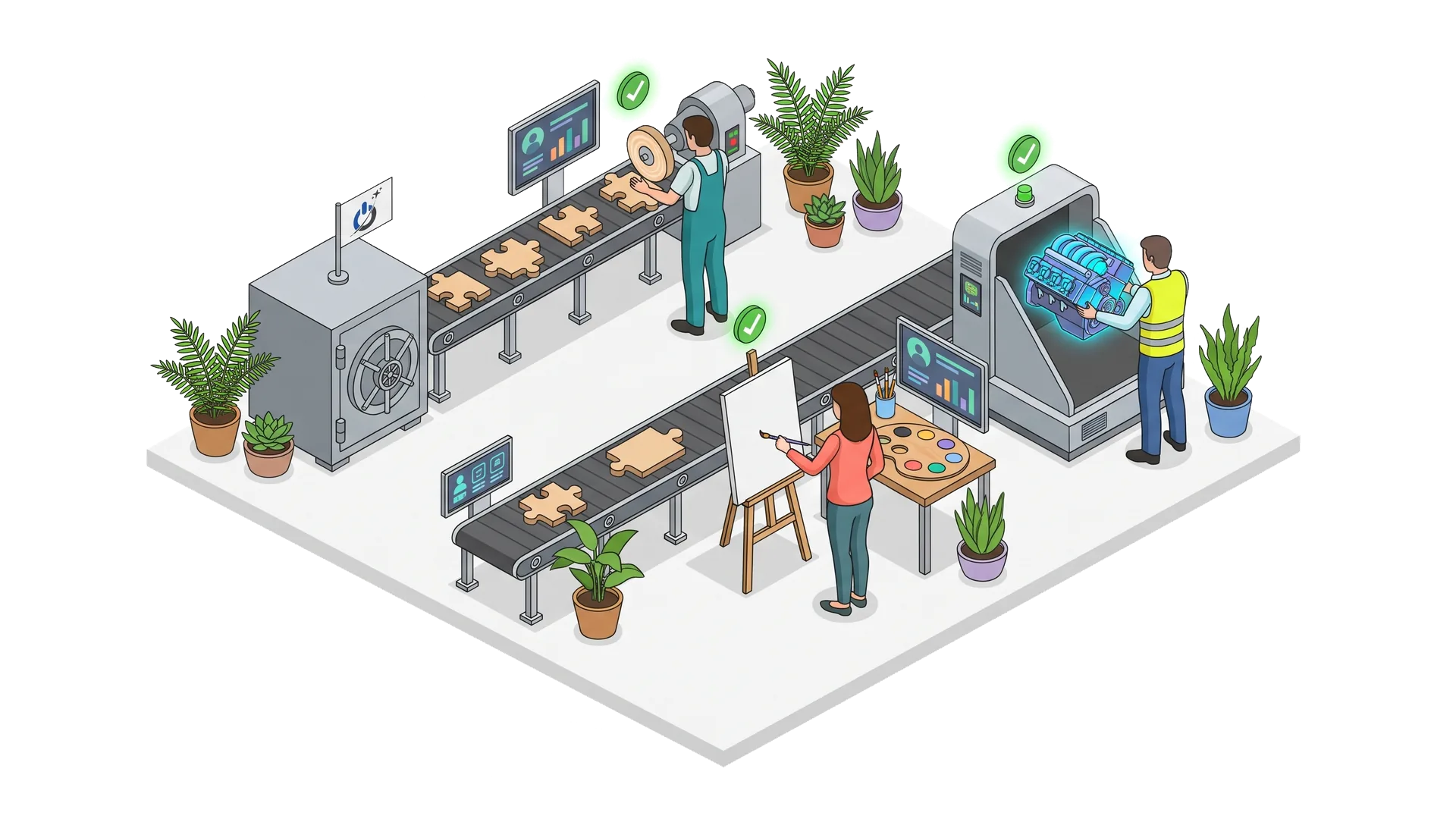
Are you ready to update?
Update WordPress in the right order
The Dashboard › Updates page lists everything that is pending. Proceed in this order, checking the site between each step:
- Plugins, one at a time or in small batches.
- The theme, making sure your customizations live in a child theme.
- WordPress core, especially for a major release.
After each step, check key pages: home, contact forms, checkout if you run a store, member area. An error caught immediately takes minutes to fix; found a week later, it may have cost sales.
How to update WordPress plugins
Update a single plugin
When an update is available, WordPress shows a badge on the Plugins menu. On the Plugins page, a notice appears under each plugin concerned: click “Update now”. The “View version details” link opens the changelog.
Bulk update plugins
On the Plugins page, click the “Update Available” filter, select the plugins you want, choose “Update” in the “Bulk actions” menu, then “Apply”. It is fast, but if something breaks it is harder to tell which plugin caused it: on a business site, prefer small batches.
Premium plugins and paid themes
Paid plugins and themes only update when their license is active and entered in their settings. An expired license is a common reason for plugins stuck on old, vulnerable versions.
Roll back to a previous version
If an updated plugin no longer works properly, deactivate it. The free WP Rollback plugin then lets you reinstall an earlier version of plugins and themes from the official directory. Report the issue to the plugin author so it gets fixed.
No time to watch your updates every week? Our maintenance team tests and applies updates for you
Update the WordPress theme
The theme updates like a plugin, from Appearance › Themes or the Updates page. Note that an update replaces the theme files. If you or your developer edited its files directly, those changes will be lost. The best practice is to keep all customizations in a child theme, which theme updates do not touch.
Update WordPress core
WordPress distinguishes minor releases (fixes and security) from major releases (new features). Minor releases install automatically by default, which is strongly recommended. Major releases are started from the Updates page, after a backup and, if possible, a test on staging. First check that your critical plugins are declared compatible with the new version.
Update PHP for WordPress
PHP is the language that runs WordPress on the server. Each version is only supported for a few years, and older ones no longer get security fixes. WordPress currently recommends PHP 8.3 or later, with MariaDB 10.11 or MySQL 8.4 or later; older versions still work but are no longer maintained.
You change the PHP version in your host’s control panel. Test on staging first: an old plugin or a poorly coded theme can throw errors on a recent PHP version. Tools › Site Health shows the version in use and flags issues.
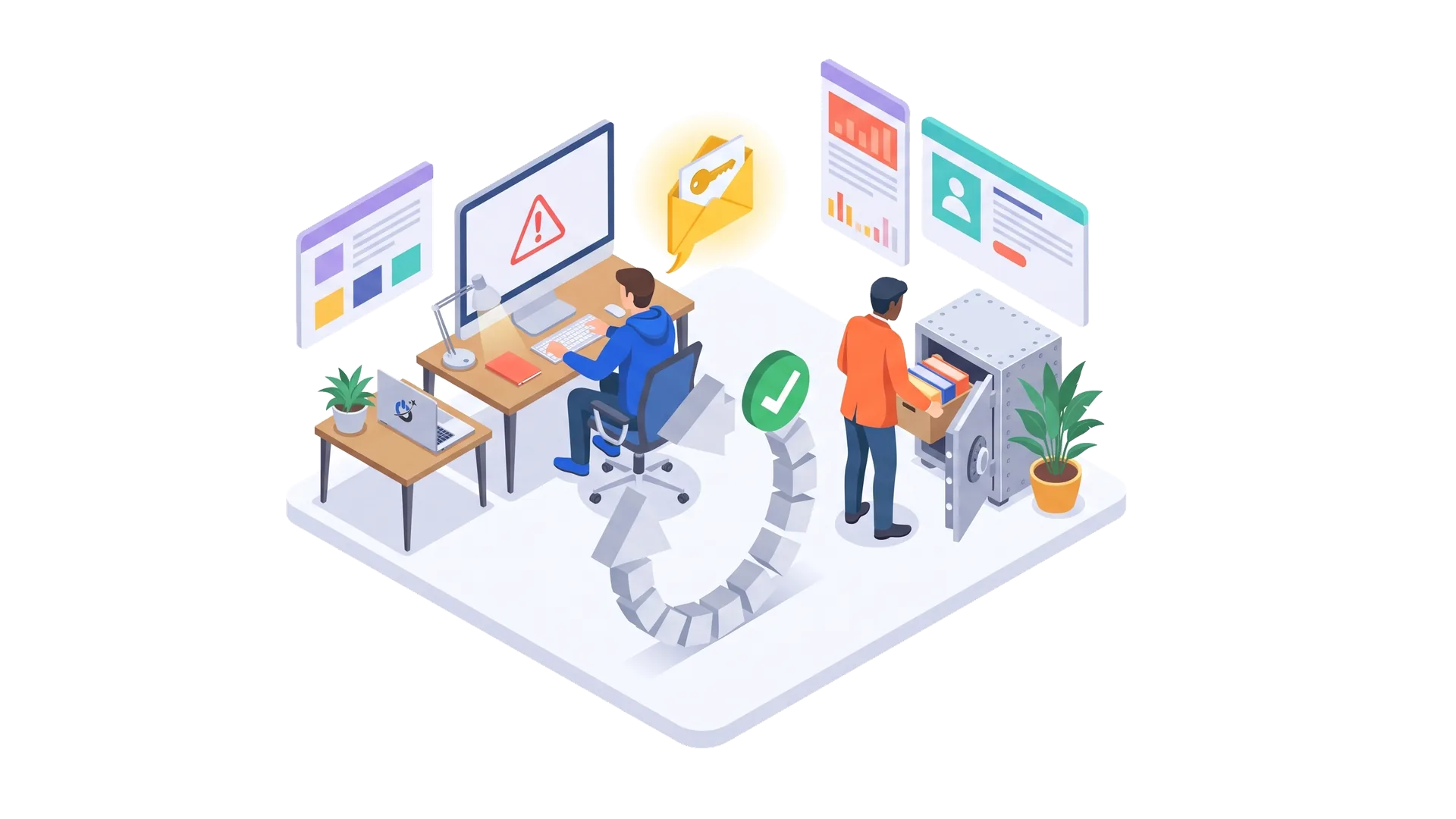
Should you enable automatic updates?
WordPress lets you enable automatic updates plugin by plugin (“Enable auto-updates” on the Plugins page) and theme by theme. Since WordPress 6.6, if an automatic plugin update causes a fatal error, WordPress rolls back to the previous version on its own.
Our advice: enable them for small, reliable plugins and for core security releases, but keep control of critical plugins (store, page builder, forms, membership) and of major releases. If you rarely log in, at least turn on email notifications.
What to do if the site breaks after an update
Don’t panic. On a fatal error, WordPress triggers recovery mode: the administrator receives an email with a link to log in and deactivate the faulty plugin or theme.
If the site is still down:
- deactivate the plugin by renaming its folder in
wp-content/pluginsvia FTP or your host’s file manager; - temporarily switch back to the previous PHP version if the error appeared after a PHP change;
- restore the backup made just before the update.
Write down exactly what was updated, and in what order: it speeds up the diagnosis. If the site was hacked rather than just broken, follow our guide on what to do when your website is hacked.
Common mistakes
- Updating everything at once without a backup on a site that sells.
- Postponing for months, until the update turns into a migration.
- Editing the parent theme directly, and losing those edits on the next update.
- Keeping abandoned plugins that no longer receive fixes: replace them.
- Staying on an end-of-life PHP version because “the site works”.
- Checking nothing after the update, especially forms and checkout.
Update it yourself or outsource maintenance?
If your site is simple, with few plugins, you can handle updates yourself with this method every week or month. Once the site becomes business-critical (store, bookings, lead generation), we recommend handing it to a professional: tested backups, staging, controlled updates, security monitoring and fast intervention. If the site is years behind, a planned website migration is often the safest route. See also our guide to website maintenance.
Conclusion: small, frequent updates
Updating WordPress is not risky with a method: tested backup, staging site, logical order (plugins, theme, core), checks after each step and a recent PHP version. Regularity makes the difference: small, frequent updates are far safer than one big update every two years. It also protects your data and your search rankings, which a hack can wipe out in days.
Frequently asked questions about updating WordPress
Should you enable automatic updates for WordPress plugins?
Yes for small, reliable plugins and core security fixes, with caution for the rest. Critical plugins (store, forms, page builder) deserve a controlled manual update. Since WordPress 6.6, an automatic update that causes a fatal error is rolled back automatically.
How often should you update WordPress plugins?
Checking once a week or every two weeks suits most sites. Security fixes should be applied as soon as they are released. For major plugin releases, waiting a few days and reading the changelog reduces the risk of hitting an early bug.
What should you do if a plugin update breaks a WordPress site?
Use the recovery mode link sent by email to log in and deactivate the faulty plugin. If the admin area is unreachable, rename the plugin folder via FTP. Then reinstall an earlier version with WP Rollback, or restore the backup made before the update.
Why test updates on a staging site?
A staging site is an exact copy of the live site, hidden from the public. Testing updates there reveals incompatibilities without affecting visitors or sales. It is essential for stores, major WordPress releases and PHP version changes.
What should you do with a plugin that is no longer updated?
An abandoned plugin no longer receives security fixes and may become incompatible with new WordPress or PHP versions. Find a maintained alternative, test it on staging, then replace the old plugin and remove it cleanly.
In what order should you update WordPress, themes and plugins?
Start with a full backup. Then update plugins, then the theme, then WordPress core, checking the site between each step. Changing the PHP version is done separately, after testing on a copy of the site.