

Description
Do your PrestaShop product pages tell customers everything they need to know?
Care instructions, materials, origin, best-before date, icons, warranty, manufacturer details… PrestaShop has no dedicated field for any of this. So everything ends up crammed into the description, the page becomes hard to read, and every new piece of information means calling a developer.
Custom fields on your product pages, no coding required
Product Extra Fields adds as many custom fields as you need to PrestaShop: text, rich text, image, price, date, color, drop-down list and more. Create them in a few clicks, fill them in from each product’s Modules tab, and they show up on your store automatically: in a product tab, below the add-to-cart button, below the product images, at the bottom of the page, or exactly where you want. No override, so there is no risk to your theme or your updates.
Without or with Product Extra Fields?
| Without the module | With Product Extra Fields |
|---|---|
| All the information mixed into a single description | A dedicated field for each piece of information, easy to fill in and review |
| A developer needed for every new field | A new field created in 30 seconds from the back office |
| Overrides or theme edits that break with each update | No override: neither the PrestaShop core nor your theme is modified |
| The same layout for every type of information | Each field displayed in the right place: tab, hook or theme variable |
Use cases
- Fashion and apparel: materials, washing instructions, size guide, care icons.
- Food and cosmetics: ingredients, allergens, best-before date, origin, directions for use.
- Technical and B2B products: detailed specifications, user manual, warranty, MSRP.
- Product safety (EU GPSR): manufacturer or EU responsible person details, safety warnings and instructions on every product page.
- Merchandising: subtitle under the product name, “Made in…” badge, accent color, secondary image.
Who is it for?
Merchants
Richer, better organized product pages without writing a single line of code.
Agencies, developers and integrators
Ready-to-use Smarty variables to place each field exactly where the design requires.
Multilingual and multistore shops
Text translated in every language and values specific to each store.
What you get
- Product pages that reassure and convert: shoppers find the answers before buying and contact your support less often.
- Full control of your layout: automatic tab, theme hook or a variable placed exactly where you want it.
- Real time savings: create a field once, then fill it in product by product, right next to the rest of the product data.
- Zero technical risk: no override, no theme or PrestaShop file modified.
Everything about Product Extra Fields
Features
12 field types
- Rich text area (WYSIWYG editor), plain text area and text field
- Checkbox and drop-down list (select)
- Integer, decimal and price (displayed in your store’s format and currency)
- Date and date/time, displayed in the visitor’s language format
- Color, displayed on the store as a round swatch
- Image (JPG, PNG, WebP or GIF), automatically resized before upload to keep your pages fast
5 display locations
- Product page tab, created automatically with the field’s label
- Below the “Add to cart” button (displayProductAdditionalInfo hook)
- Below the product thumbnails (displayAfterProductThumbs hook)
- At the bottom of the product page (displayFooterProduct hook)
- A variable to paste into your theme, exactly where you want it (subtitle, badge, custom block…): the code is provided and copied in one click
Back-office management
- Unlimited fields, each with a name, label, type, location, position and status (enabled or not)
- Values entered in each product’s Modules tab, on both the classic product page and the new PrestaShop 8 and 9 product page
- Multilingual: text and labels entered in each store language
- Multistore: values specific to each store
- Module back office available in English and French
- All fields are also available in your templates through
$modules.productextrafields.fields(formatted value, raw value, label, type)
Compatibility
- PrestaShop 1.6.1 to 9.x, with one single installation file: the module adapts automatically to your version
- Tested on PrestaShop 1.6.1, 1.7.8, 8.2 and 9.2, with both the classic and the new product page
- Works with the Default-bootstrap (1.6), Classic and Hummingbird themes, and with any theme that uses the standard PrestaShop hooks
- No override: no class or controller is overridden
Installation
- Install the module from Modules > Module Manager > Upload a module
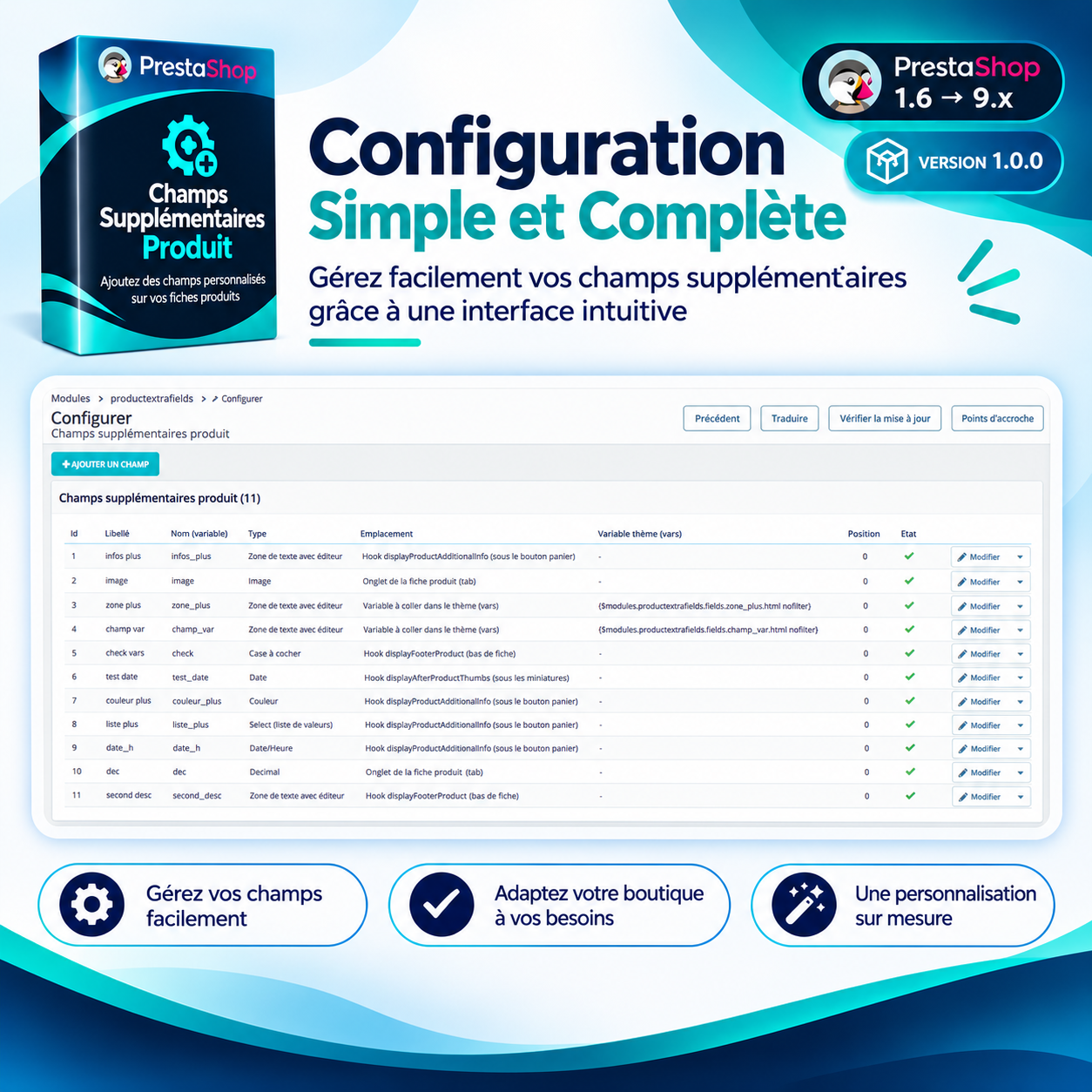
- In the module configuration, create your fields: name, label, type and location
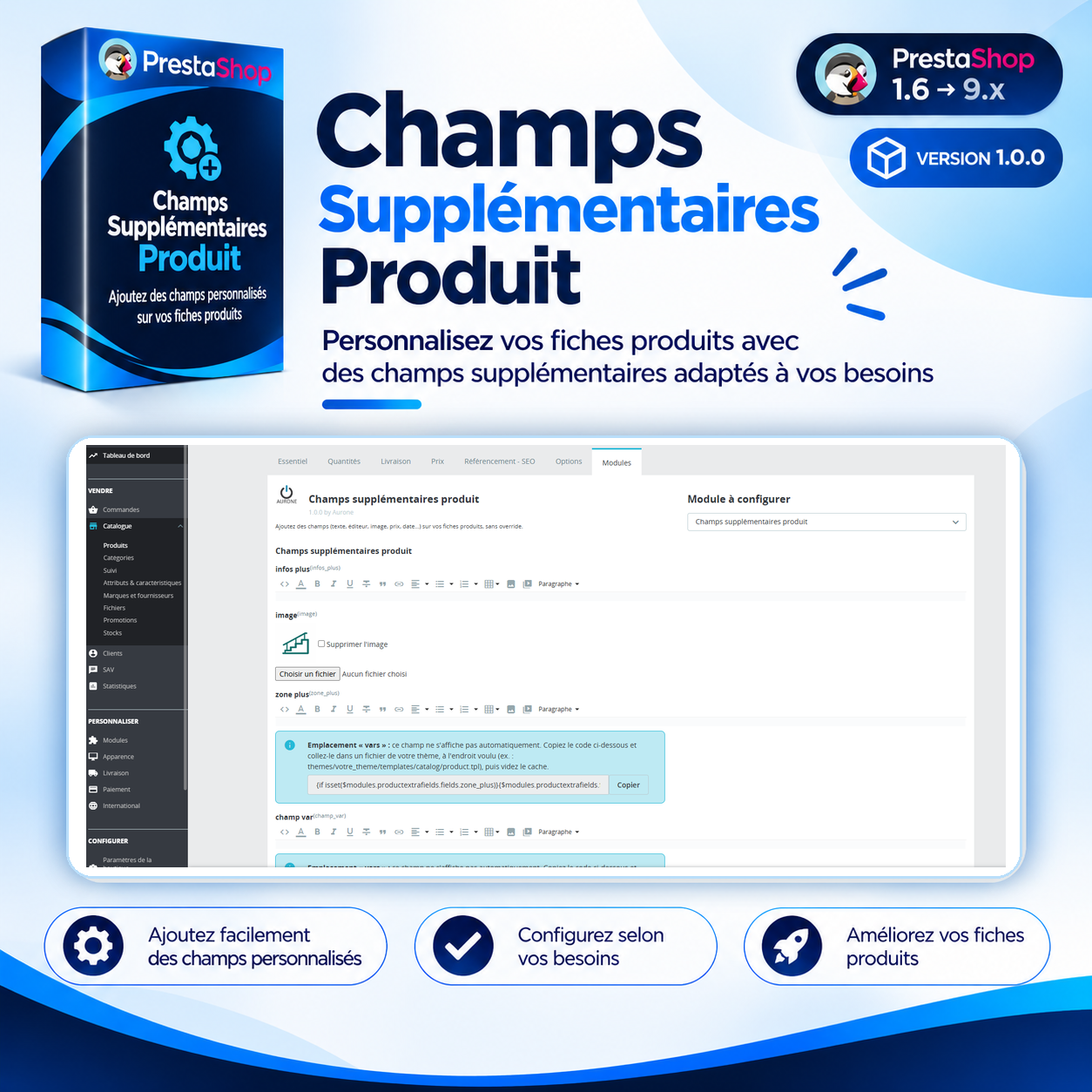
- Fill in the values from your products’ Modules tab: they appear on your store right away
- For a field using the “variable” location, paste the provided code into your theme, then clear the cache
What’s included
- License for 1 PrestaShop store
- 12 months of updates
- 12 months of support in English, French, Spanish, German, Italian and Arabic
- User guide in English and French
- Instant download after payment
“Module + installation” option (+$10): our experts install the module on your store and carry out the basic configuration. You don’t have to do anything.
Frequently asked questions
How do I add a custom field to a PrestaShop product page?
With Product Extra Fields, create the field in the module configuration (name, label, type, location), then enter its value in the product’s Modules tab. The field appears on your store right away, with no code and no override.
Does the module modify my theme?
No. The “tab” and “hook” locations are displayed automatically. Only the “variable” location requires pasting one line of code, provided by the module, into your theme where you want the field to appear.
Does it work with the new PrestaShop 8 and 9 product page?
Yes. Fields are filled in from the Modules tab, on both the classic and the new product page.
Does the module work with PrestaShop 1.6?
Yes, with the same file as for versions 1.7, 8 and 9. On PrestaShop 1.6, fields are shown in the product tabs, below the cart button, in the center column or at the bottom of the page, and the theme variable is provided in the 1.6 syntax.
How many fields can I create?
As many as you need, of different types, each with its own label, position and location.
Can fields be translated?
Yes. Text fields (rich text, text area, text field) and labels are entered in each store language. Other types (number, price, date, color, image…) share the same value across all languages.
Does the “Price” field change the product price?
No. It displays information, such as an MSRP or a price per kilo, in your store’s format. It changes neither the selling price nor the cart.
Can my customers fill in these fields?
No: you fill them in from the back office to enrich your product pages. To let customers enter text (engraving, name…), use PrestaShop’s built-in product customization.
Can I display the information required by the GPSR?
Yes. For example, create a “Manufacturer” field and a “Safety warnings” field, then show them in a tab or at the bottom of the page. The module displays the information you enter; its content remains your responsibility.
Can I use the module on several stores?
The module is multistore compatible and saves values specific to each store. The license covers one store; for another store, simply order an additional license.
What happens if I uninstall the module?
Fields and their values are deleted along with the module. Back up your content before uninstalling for good.
What does the “Module + installation” option include?
Our experts install the module on your PrestaShop store and carry out its basic configuration. After your order, we contact you to arrange access to your store.
What happens after 12 months?
The module keeps working on your store. Only updates and support expire.



Reviews
There are no reviews yet.